
HOW IT WORKS
Track Manager Platform
Simple to use…. It’s all explained right here
This page will help you Understand our GPS Fleet Tracking System and therefore improve your user experience.
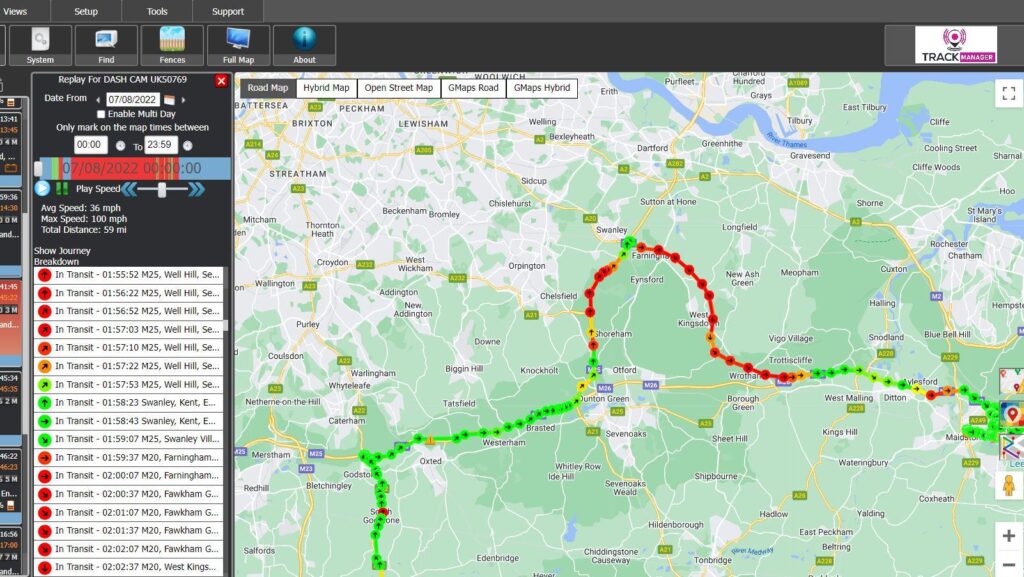
This is a general view once you are logged in. We will split the view down into sections so we explain the real benefits of our Fleet Tracking Platform. We will then identify the main features per section.
You will see in this section that the TRACKER REPLAY has been clicked which has immediately shown the days history on the screen and allows you to define the parameters by date and time.
This is the left side of Our GPS Tracking Panel.
We have selected items 1 to 10 so that you can understand each data point.
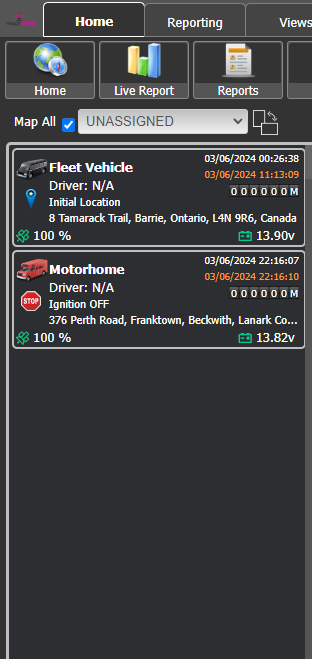

- This is the ICON chosen for this vehicle from the tracker settings menu specific to each vehicle.
- This is the TRACKER NAME chose for this vehicle from the tracker settings menu specific to each vehicle.
- This is the LAST GPS POSITION date and time.
- This is the last time the device sent data to the server. This could be different from the GPS date and time if the unit did not have GPS at that time.
- This unit can be the driving hours or mileage of the vehicle and it updated generally every 4 hours.
- This is the speed limit of the road.
- This indicates the voltage of the vehicle.
- This is indicating that the GPS unit has a good GPS fix.
- This address is determined from the longitude and latitude of the last GPS fix.
- This shows the vehicle is moving and the current speed of the vehicle.This is indicating that the GPS unit has a good GPS fix.
Top Menus of Our GPS Tracking Panel.

Lets Explore the Menu Choices on the second line down to truly maximize your advantage from our Fleet Tracking Platform.
Live Report – Depending which vehicle you have pre clicked on the left first. This shows a LIVE report for the current day. It shows speed analysis, start/stop data, a snapshot map view and driver behaviour alerts.
Reports – Depending which vehicle you have pre clicked on the left first. This give you options such as to run a DETAILED REPORT on the vehicle. This can be produced in XLXS format or PDF and exported to e mails. Reports can also be auto generated so that you don’t even have to login to get them.
System – This allow you to change a whole range of settings within the Tracking system such as setting up OUT OF HOURS Alerting, On screen alerts and adding or removing users.
Home – This sets your map on the screen back to showing ALL vehicles within your control.
Find – This will allow you search for specific names, drivers or vehicles within your fleet and shows their current location on the map.
Fences – Installing fences is an excellent method for receiving immediate notifications whenever a vehicle enters or exits a specific zone. These notifications can be conveniently sent to you via email or as a push alert directly on your mobile device.
Full Map – See an overview in full map view of all devices. Pressing Home will revert to the standard view.
Push Settings
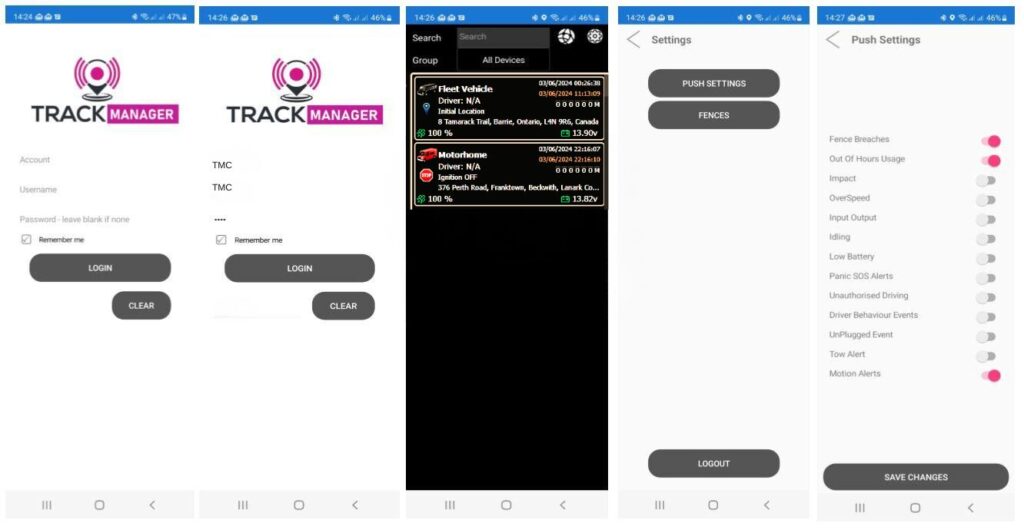
Access our App TRACKMANAGER available for download on all App Stores
Unlock the full potential of our APP by effortlessly receiving PUSH ALERTS on your smart phone. Just follow these straightforward steps.
1. OPEN THE APP
2. INSERT YOUR ACCOUNT Reference, USERNAME AND PASSWORD. We will have e mailed you these details.
3. CLICK LOGIN
4. TOUCH/PRESS THE SETTINGS WHEEL AT THE TOP RIGHT OF YOUR SCREEN
5. TURN ON THE RELEVANT PUSH ALERTS AS SHOWN IN THE IMAGE ABOVE
6. SAVE THE CHANGES AT THE BOTTOM OF THE SCREEN.